
General information
The Hyman Tower door camera is only accessible when connected to the Hyman-Resident Wi-Fi network. Connection instructions are further down this page.
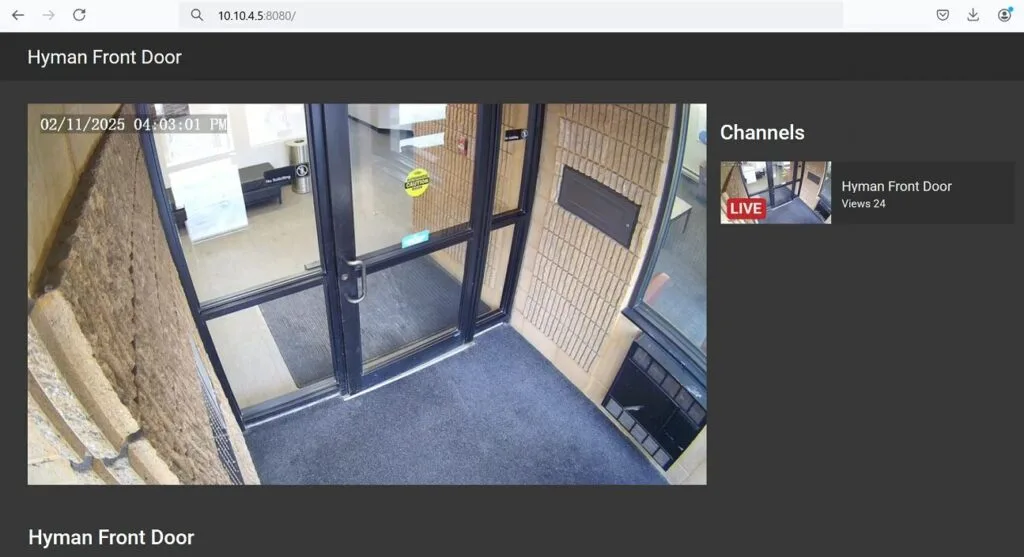
Once you're on the correct network, open the door camera here:
Or scan this QR code from your phone (while connected to Hyman-Resident):

Wi-Fi connection information
Example:
Connection instructions
General mobile devices
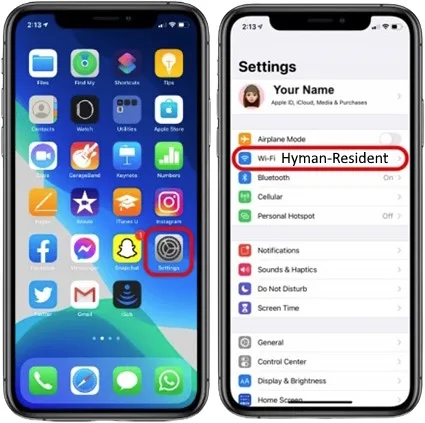
- Go to your device settings
- Tap Wi-Fi
- Connect to the SSID above
- When prompted, enter the password
- You're now connected!
Windows 10 / 11
- Click the network icon in the bottom right-hand corner of your screen
- Connect to the SSID above
- When prompted, enter the password
- You're now connected!
Mac OS X
- Click the wireless network icon in the top right-hand corner of your screen
- Connect to the SSID above
- When prompted, enter the password, then click Join
- You're now connected!
Frequently asked questions
What is an SSID?
An SSID is simply the name of the Wi-Fi (wireless) network.
I connected to multiple SSIDs but no longer want them. Can I delete them?
Yes — follow the instructions in the "Removing SSIDs" section under General Troubleshooting below.
Is there a way to reset my connection if I have trouble?
Yes — reboot your phone, then follow the "Removing SSIDs" instructions below. After the network is removed, reconnect using the connection instructions above.
General troubleshooting — removing SSIDs
Removing an SSID can reset the connection so you can start from scratch, and it's also how you stop connecting to a network you no longer use.
iOS (iPhone, iPad)
- Go to your device settings
- Tap Wi-Fi
- Tap the blue "i" in a circle next to the network you want to forget
- Tap "Forget This Network"
Android devices
- Go to Settings
- Go to Wi-Fi
- Press and hold the network you want to forget
- Tap "Forget this network" (wording may vary by device)
Windows 10 / 11
- Click the network icon in the bottom right-hand corner of your screen
- Click "Network Settings"
- Click "Manage Wi-Fi Settings"
- At the bottom of the page, click the network you wish to forget
- Click "Forget"
Mac OS X
- Click the Apple icon in the top left-hand corner of your screen
- Click "System Preferences," then "Network"
- On the Wi-Fi tab, click "Advanced"
- In the list at the top, find the network you want to remove
- Click the "–" sign under the list
- Close the Advanced window and click Apply
Turning off auto-join on iOS (iPhone, iPad)
There are two ways to do this: turn off auto-join for a single network, or for all networks.
For a single SSID
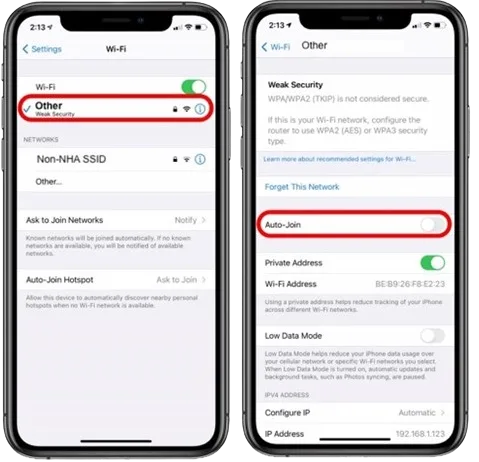
- Open Settings, tap Wi-Fi
- Tap the Wi-Fi network you'd like to change
- Tap the "Auto-Join" toggle to turn it off
- Repeat for any network you'd like to join manually
For all SSIDs
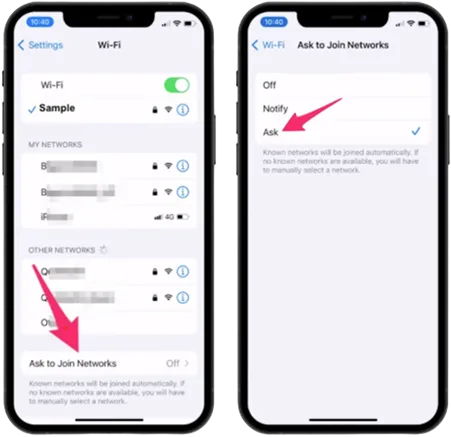
- Open Settings, tap Wi-Fi
- At the bottom of the screen, tap "Ask to Join Networks"
- Tap "Off"
Still having trouble? We're happy to help.