

Wi-Fi support: 📧 WiFiSupport@intellibeam.com · 📱 401-289-9434
For best performance, connect only to the SSIDs you need. For example, if you are in Pond Ave 6, "NHA Pond Ave 5-7" is the best one to use. If you move to another building, add the new SSID at that time.
Your location
Pond Avenue
Park Holm
Edgar Court
Donovan Manor
Chapel Terrace
Coddington
Earl Ave
Deblois
Chapel Street
Connection instructions
General mobile devices
- Go to your device settings
- Tap Wi-Fi
- Connect to the appropriate SSID for your building (see above)
- When prompted, enter the password
- You're now connected!
Windows 10 / 11
- Click the network icon in the bottom right-hand corner of your screen
- Connect to the appropriate SSID for your building
- When prompted, enter the password
- You're now connected!
Mac OS X
- Click the wireless network icon in the top right-hand corner of your screen
- Connect to the appropriate SSID for your building
- When prompted, enter the password, then click Join
- You're now connected!
Frequently asked questions
What is an SSID?
An SSID is simply the name of the Wi-Fi (wireless) network.
Should I add every SSID listed above?
It's recommended to only add the SSIDs you need. The networks were set up this way for ease of troubleshooting and to give you the best experience on Wi-Fi.
I connected to multiple SSIDs but no longer want them. Can I delete them?
Yes — follow the instructions in the "Removing SSIDs" section under General Troubleshooting below.
Is there a way to reset my connection if I have trouble?
Yes — reboot your phone, then follow the "Removing SSIDs" instructions below. After the network is removed, reconnect using the connection instructions above.
General troubleshooting — removing SSIDs
Removing an SSID can reset the connection so you can start from scratch, and it's also how you stop connecting to a network you no longer use.
iOS (iPhone, iPad)
- Go to your device settings
- Tap Wi-Fi
- Tap the blue "i" in a circle next to the network you want to forget
- Tap "Forget This Network"
Android devices
- Go to Settings
- Go to Wi-Fi
- Press and hold the network you want to forget
- Tap "Forget this network" (wording may vary by device)
Windows 10 / 11
- Click the network icon in the bottom right-hand corner of your screen
- Click "Network Settings"
- Click "Manage Wi-Fi Settings"
- At the bottom of the page, click the network you wish to forget
- Click "Forget"
Mac OS X
- Click the Apple icon in the top left-hand corner of your screen
- Click "System Preferences," then "Network"
- On the Wi-Fi tab, click "Advanced"
- In the list at the top, find the network you want to remove
- Click the "–" sign under the list
- Close the Advanced window and click Apply
Turning off auto-join on iOS (iPhone, iPad)
There are two ways to do this: turn off auto-join for a single network, or for all networks.
For a single SSID
- Open Settings, tap Wi-Fi
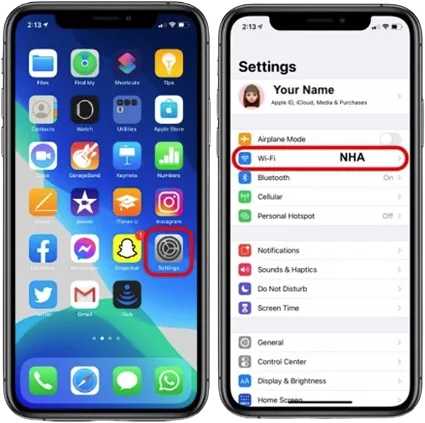
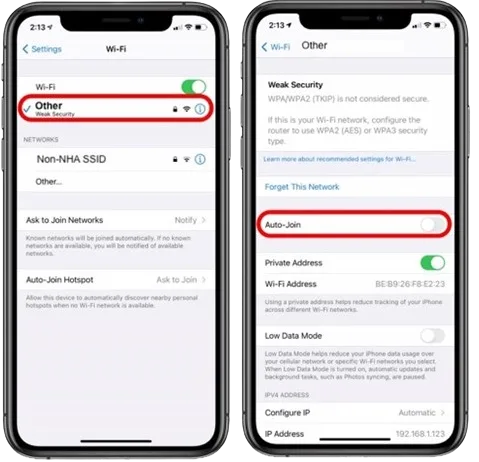
- Tap the Wi-Fi network you'd like to change
- Tap the "Auto-Join" toggle to turn it off
- Repeat for any network you'd like to join manually
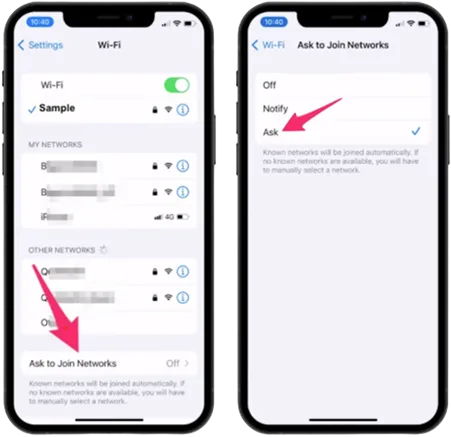
For all SSIDs
- Open Settings, tap Wi-Fi
- At the bottom of the screen, tap "Ask to Join Networks"
- Tap "Off"
Have any questions? Feel free to contact us.